 Sopan Khekade
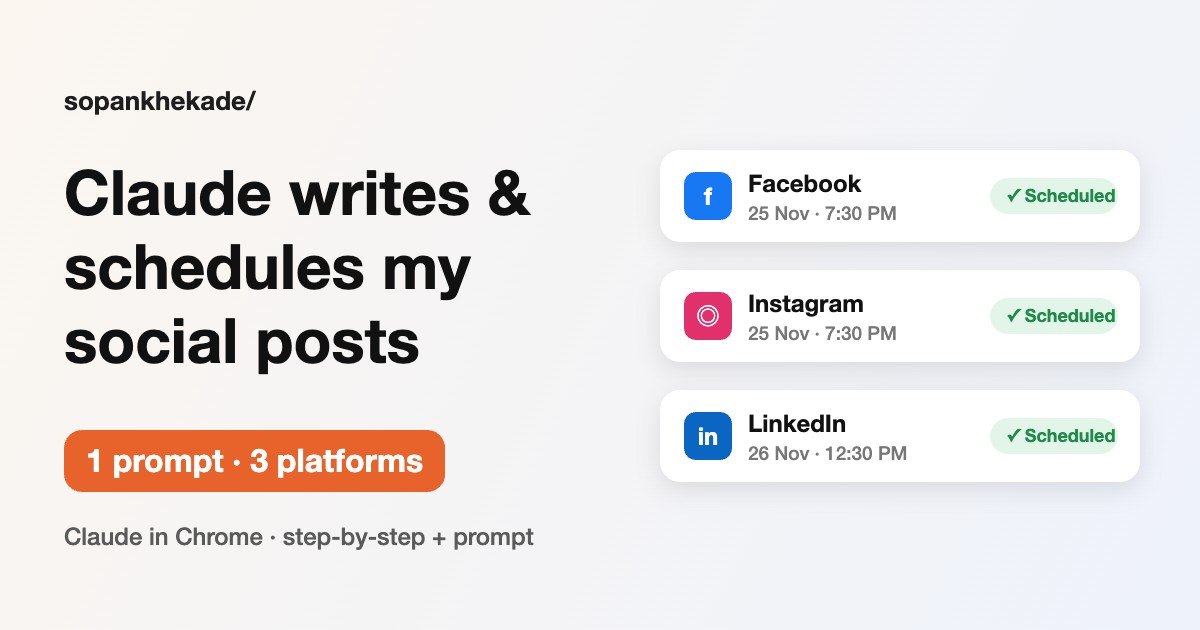
I gave Claude one prompt, and it wrote my Black Friday posts and scheduled them on Facebook, Instagram and LinkedIn, inside my own browser, while I watched.
No scheduling tool, no copy-pasting between tabs. Here’s what happened in the recording I posted on Instagram:
- Facebook + Instagram: Claude opened Meta Business Suite’s Create post screen, selected both Facebook and Instagram, set the date (25 Nov) and time (7:30 PM), and clicked Schedule. Meta confirmed it with “Your post is scheduled”.
- LinkedIn: Claude opened the LinkedIn composer, wrote the post (“Most Black Friday ad money isn’t lost to bad strategy. It’s lost to small things nobody notices for hours…”), picked the next day at 12:30 PM in the schedule dialog, and clicked Schedule.
The tool is Claude in Chrome, Anthropic’s browser extension. It reads the page, clicks and types in your own Chrome, where you’re already logged in. Below is exactly how I set it up, the prompt I used, and the rules I follow so it never does something I didn’t ask for.
What you need
| Need | Why |
|---|---|
| A paid Claude plan (Pro, Max, Team or Enterprise) | Claude in Chrome is available on paid plans only (Anthropic help) |
| Google Chrome + the Claude in Chrome extension | Claude works inside your browser, so it uses your logged-in sessions |
| Logged in to Meta Business Suite (with your Facebook Page and Instagram connected) and to LinkedIn | Claude doesn’t log in for you; it works in the accounts you already have open |
| Your topic and the posting times | Claude writes and schedules; you decide what and when |
No Zapier, no Buffer, no API keys.
Step-by-step setup (10 minutes)
- Install Claude in Chrome. Add the extension from the Chrome Web Store and sign in with your Claude account. Pin it to your toolbar.
- Open the side panel. Click the Claude icon in the toolbar. The panel stays open while you browse.
- Log in to your platforms in normal Chrome tabs: business.facebook.com (Meta Business Suite) and linkedin.com. Check your Facebook Page and Instagram account are both connected in Meta Business Suite.
- Allow the sites. The first time Claude acts on a site, the extension asks for permission. Allow only the sites this job needs: business.facebook.com and linkedin.com.
- Paste the prompt from the next section into the side panel, fill in your topic and times, and press Enter.
- Watch the first run. You’ll see “Claude is working here” on the page as it clicks and types. Keep the window open until it reports back.
- Check the queue. Open Meta Business Suite’s Planner and LinkedIn’s scheduled posts to confirm both posts are there at the right times.
Once the first run works, you can reuse the same prompt every week, or turn it into a skill (below).
The prompt (copy and paste)
Replace the parts in [brackets]. Times are in your local time zone.
You are my social media assistant. Topic: [Black Friday ad mistakes D2C brands make].
Audience: [Indian D2C founders and marketers]. Tone: practical, no hype.

1. WRITE
- Facebook + Instagram post: hook line, 3-5 short arrow points, one clear takeaway,
  a CTA to comment [KEYWORD], max 150 words, 5 relevant hashtags.
- LinkedIn post: same idea, more professional, short paragraphs, max 1,300 characters,
  no hashtags in the body, 3 hashtags at the end.
Show me both drafts before posting anything.

2. SCHEDULE ON META (after I say OK)
- Go to business.facebook.com/latest/composer
- Select both Facebook and Instagram
- Paste the Facebook + Instagram post and attach [image file / leave text only]
- Click Schedule, set date [25 Nov 2026] and time [7:30 PM] for both, click Schedule
- If Meta offers a Boost, click "Maybe later". Never boost or spend money.

3. SCHEDULE ON LINKEDIN
- Go to linkedin.com, click "Start a post", paste the LinkedIn post
- Click the clock icon, set date [26 Nov 2026] and time [12:30 PM], Confirm, then Schedule

4. REPORT
- Tell me each platform, the date and time it is scheduled for, and anything that failed.
- If any page looks different from these steps, stop and ask me instead of guessing.
The two lines that matter most: “Show me both drafts before posting” (you approve the words) and “Never boost or spend money” (Meta pushes a Boost screen right after scheduling).
Turn it into a reusable skill
Typing the full prompt every week gets old. Two ways to save it:
- Record the workflow once. In the Claude in Chrome side panel you can click the record icon, do the steps yourself, and Claude learns them for next time (Anthropic help).
- Save it as a Claude skill. A skill is a short instruction file Claude loads whenever you ask for that job. Create one in Claude with this content, then just say “schedule this week’s posts about [topic]”.
---
name: social-post-scheduler
description: Write and schedule one Facebook+Instagram post and one LinkedIn post
  in Chrome when asked to schedule social posts on a topic.
---
1. Ask for: topic, audience, comment keyword, FB/IG date+time, LinkedIn date+time,
   and an image if any. Use the user's local time zone.
2. Draft both posts (FB/IG: hook, 3-5 arrow points, CTA, max 150 words, 5 hashtags;
   LinkedIn: max 1,300 characters, 3 hashtags at the end). Wait for approval.
3. Meta Business Suite (business.facebook.com/latest/composer): select Facebook and
   Instagram, paste, set date and time for both, click Schedule. Click "Maybe later"
   on any Boost offer. Never spend money.
4. LinkedIn: Start a post, paste, clock icon, set date and time, Confirm, Schedule.
5. Report each platform with its scheduled date and time. If a page looks different
   or asks for payment, login or a code, stop and ask.
Safety rules I follow
Claude in Chrome acts inside your real, logged-in accounts. Anthropic itself says it carries risk and asks users to read its safety guide first. My rules:
- Approve the text first. Claude drafts, I read, then I say go. Nothing gets published that I haven’t read.
- Allow only the sites the job needs. Meta Business Suite and LinkedIn, nothing else.
- No money, ever. The prompt says never boost. Ad spend, payments and logins stay with me.
- Watch the first few runs. Don’t walk away until you trust the flow on your own accounts.
- Don’t run it on pages with untrusted text. Websites can hide instructions aimed at AI. Keep the task to your own dashboards.
- Check the queue after. A 20-second look at the scheduled posts list catches a wrong date or time.
FAQ
Does this work for Instagram without Meta Business Suite? This setup uses Meta Business Suite because it schedules Facebook and Instagram in one screen. Your Instagram must be a professional account connected to your Facebook Page.
Can Claude add images? Yes, if you tell it which image to attach and the file is available in the composer’s upload dialog. I keep images ready before I start.
Is it faster than doing it myself? The first run isn’t, because you’re watching and approving. After that, it’s one message and a quick check of the queue, every week.
What if the site’s layout changes? That’s why the prompt says “stop and ask instead of guessing”. Claude tells you what it sees and you guide it.
For more such guides, follow me
I share practical AI and marketing automation guides like this every week. Follow me here: