 Sopan Khekade
When someone searches “dentist near me” or “bakery in Wakad”, Google shows a map with three businesses before any website. Those three get most of the calls, the direction requests and the WhatsApp messages. If your Google Business Profile is half-filled, you are not in that list, and you never find out how many customers you lost.
The good news: the fixes that matter most take about 10 minutes. This is the checklist I promised in my reel. Do it once today, then keep the habits in Step 4 going every week.
Before you start
- Open business.google.com (or search your business name on Google while logged in) and click Edit profile.
- You must be the owner or a manager of a verified profile. Unverified profiles can’t reply to reviews or add chat.
- Keep your phone handy for photos.
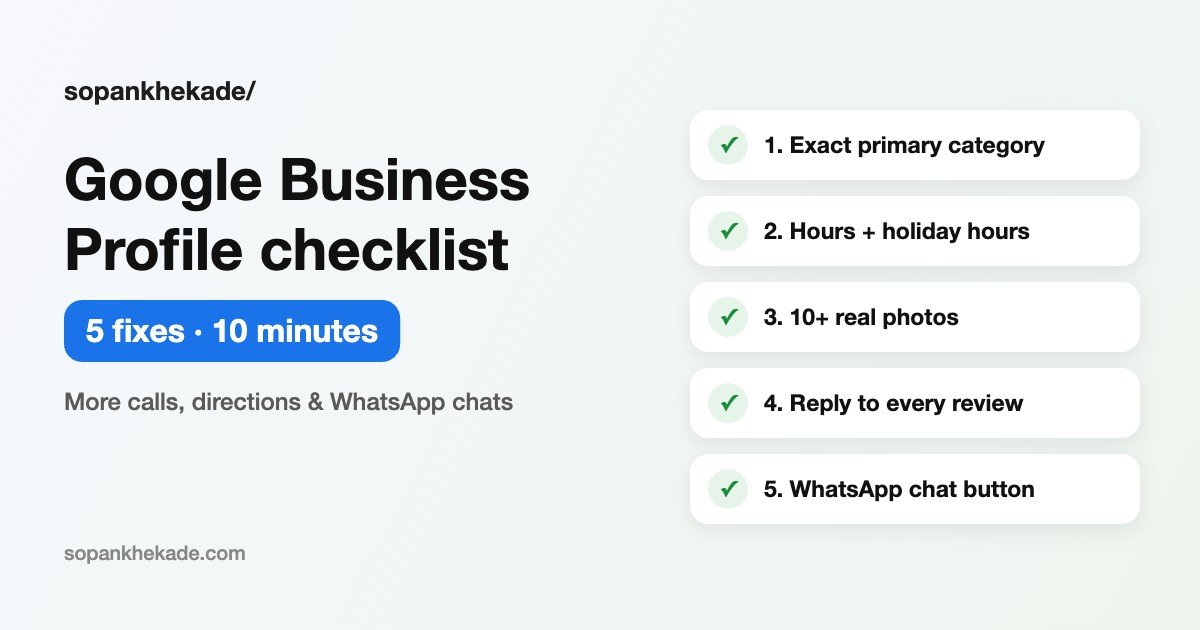
The 10-minute checklist
| # | Fix | Time |
|---|---|---|
| 1 | Pick the exact primary category | 2 min |
| 2 | Correct your hours and add holiday hours | 2 min |
| 3 | Upload at least 10 real photos | 3 min |
| 4 | Reply to reviews and share your review link | 2 min |
| 5 | Turn on Chat with a WhatsApp link | 1 min |
Step 1: Pick the exact primary category
Your primary category tells Google what you are. Google itself says the categories you select affect your local ranking, and local SEO studies rank the primary category as the single biggest factor in the map results.
- Be specific, not generic. Google’s own example: choose “Nail salon” instead of “Salon”. A dentist should pick Dentist, not just “Clinic”.
- Search your main keyword (“dentist near me”) and check which primary category the top 3 businesses use. That is usually the right one.
- Add secondary categories only for services you really offer (you can have 1 primary and up to 9 more).
- Don’t keep changing it. Pick the right one and leave it.
Where: Edit profile → Business category → Primary category.
Step 2: Correct your hours and add holiday hours
If Google says you are open and the customer finds a shutter, you lose that customer and probably get a 1-star review. If Google says you are closed when you are open, they simply go to the next result.
- Set your regular hours for every day, including lunch breaks if you close.
- Before Diwali, Christmas, New Year or any local holiday, add Special hours for those dates (Google guide). Special hours only show if your profile is set to “Open with main hours”.
- Closed for a few days for a renovation or a family function? Use special hours, don’t mark the business closed.
Where: Edit profile → Hours → Special hours → Add a date.
Step 3: Upload at least 10 real photos
People decide from photos before they ever call. Google’s own playbook says businesses with photos get noticeably more direction requests on Maps. My rule for clients is a minimum of 10 real photos, never stock images:
- 2 to 3 outside photos so people recognise the shop or building when they arrive (signboard visible).
- 3 to 4 inside photos: reception, work area, products on the shelf.
- 2 to 3 photos of you and your team at work. Faces build trust faster than anything else.
- Your logo and a clean cover photo.
- Then add 2 to 3 new photos every month so the profile looks alive.
Where: Edit profile → Photos (or the “Add photo” button on your profile).
Step 4: Reply to every review and share your review link
Reviews are both a ranking signal and the first thing a new customer reads. Two habits:
- Reply to every review, good and bad, within a day or two (how to reply). Thank happy customers by name. For a complaint, stay calm, apologise, and offer to fix it offline. Your reply is public and the reviewer is notified.
- Ask happy customers for a review with your direct link. In your profile go to Read reviews → Get more reviews, and copy the link or download the QR code (Google guide). Send it on WhatsApp right after a good visit or delivery, print the QR at the counter, and add it to your bills.
Don’t offer discounts or gifts in exchange for reviews. Google’s policy says business owners should not offer incentives for reviews, and fake or paid reviews can get your profile restricted.
Copy-paste WhatsApp message:
Hi [Name] Ji, thank you for visiting [Business] today! If you have 30 seconds, a quick Google review would really help us: [your review link]
Step 5: Turn on Chat with a WhatsApp link
Many customers would rather message than call, especially after hours. Google now lets you add a WhatsApp or text-message button to your profile.
- Create your WhatsApp click-to-chat link: https://wa.me/91XXXXXXXXXX (country code + number, no +, spaces or leading zero). Open it in a browser once to test it.
- In your profile: Edit profile → Contact → Chat → Edit, choose WhatsApp and paste the link (Google guide).
- Set a WhatsApp Business greeting and away message so nobody waits without a reply.
- Note: Google says chat options are available only in select regions, so if you don’t see the Chat field yet, add the wa.me link as your website or in your social links for now.
Bonus: 3 things that keep you ranking
- Post an update every week (offer, new product, festival greeting) from your profile. It shows Google and customers that you are active.
- Write a clear description: what you do, which areas you serve, and why people choose you. No keyword stuffing, no phone numbers or links in it.
- Keep your name, address and phone exactly the same everywhere: Google, Justdial, your website, Instagram bio.
Quick self-check
Search your main keyword on Google Maps from your phone, standing near your shop. Are you in the top 3? If not, compare your profile with the three that are: category, photo count, review count and how recently they got reviews. The gap is usually obvious.
Want this done for your business?
This is the same checklist my team at Codexxa uses for clinics, restaurants and local brands. If you’d like us to audit and fix your Google Business Profile, or you have a question, DM me on Instagram @sopankhekade.